Can You Use Vedu App on LG Smart TV
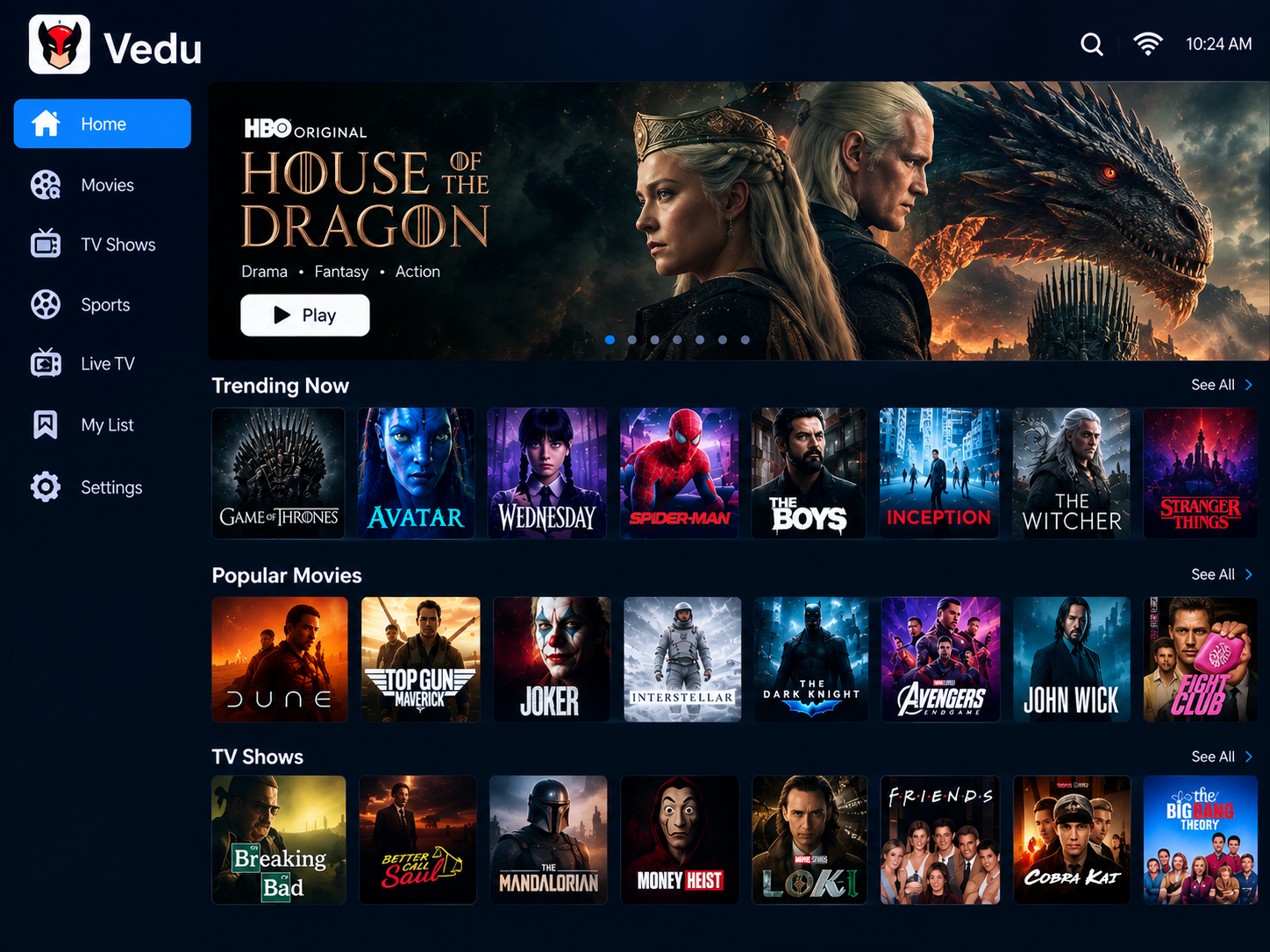
If you have an LG Smart TV and want to watch content from Vedu App, remember that LG TVs use webOS, not Android. Therefore, you cannot normally install an Android APK directly on the TV. You can still watch through a compatible Android TV or Google TV device connected by HDMI or use screen mirroring from a supported Android phone. Check your LG TV model and available apps first.
Why Vedu APK Does Not Work on LG Smart TV
Vedu APK does not work directly on most LG Smart TVs because LG TVs use the webOS operating system, while APK files are designed for Android. The two platforms use different app formats, so you cannot install an Android APK on LG webOS like you would on an Android TV. If Vedu is not available in the LG Content Store, you will need a compatible external Android TV or Google TV device to run it.
How to Download and Install Vedu App on LG Smart TV
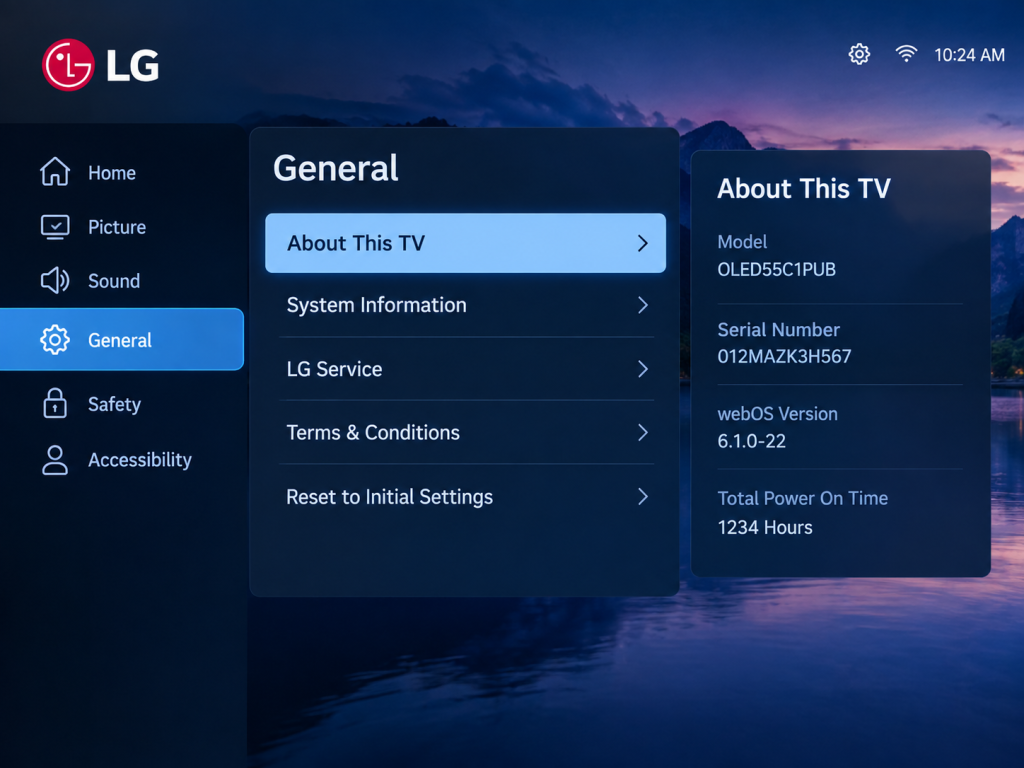
1. Check Your LG TV Compatibility
Check your LG TV model and webOS version to see whether the app is supported.
2. Check the LG Content Store
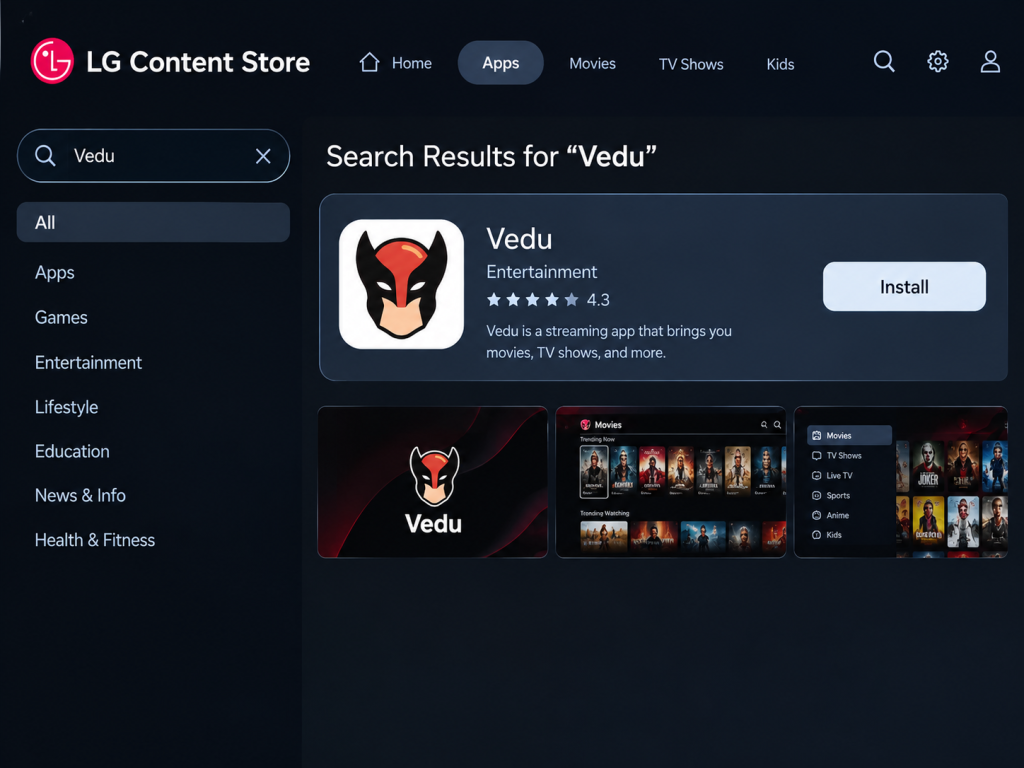
Open the LG Content Store and search for Vedu. If a compatible version appears, select Install.
3. Use an Android TV Device
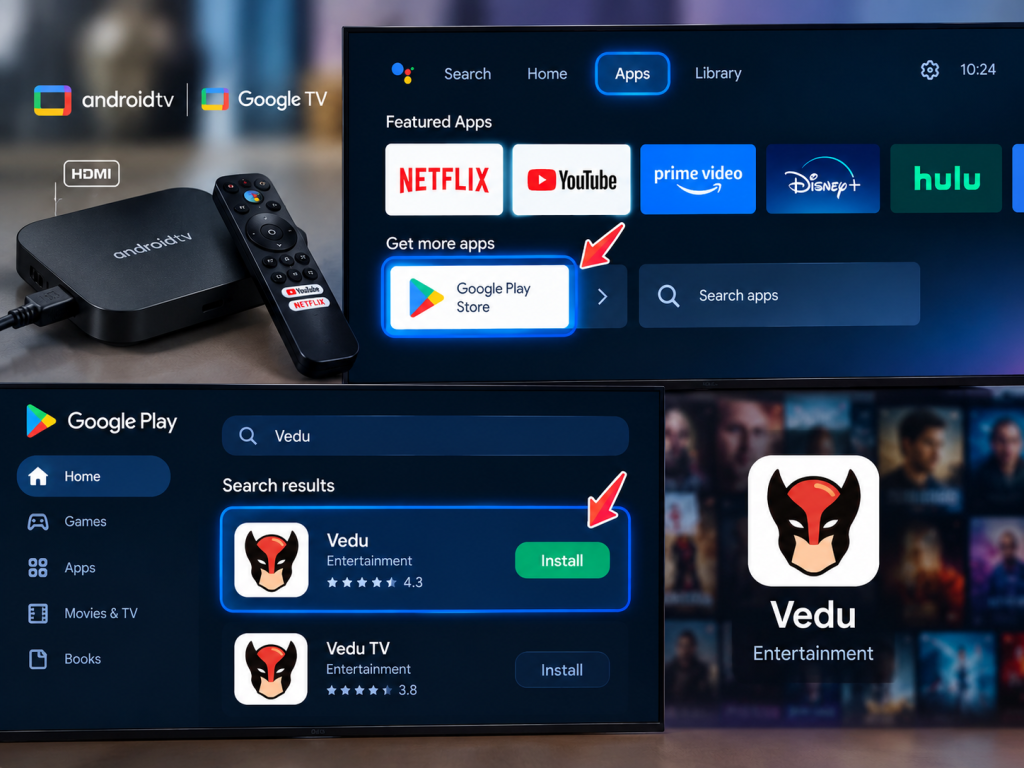
If the app is unavailable on LG webOS, connect an Android TV or Google TV device through HDMI and install the Android version there.
4. Open Vedu and Start Watching
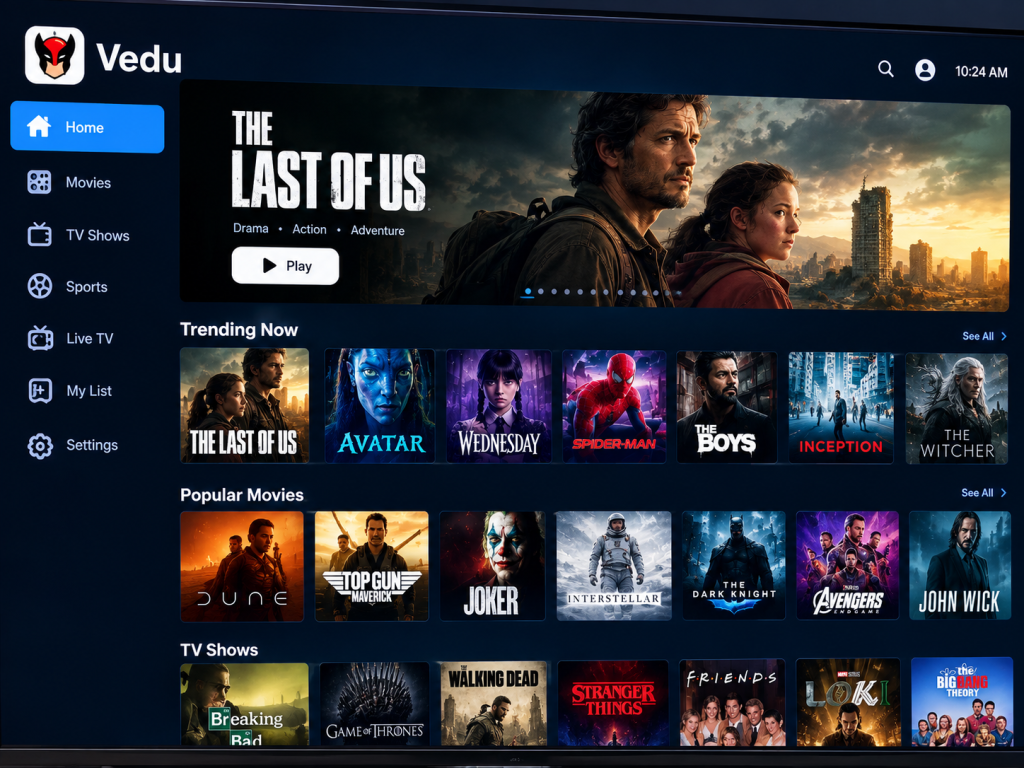
Launch the app from your Android TV device, choose your content, and start watching it on your LG Smart TV.
Why Vedu APK Does Not Work Directly on LG TV
The main issue is the operating system.
- LG Smart TV: Uses webOS
- Android TV: Uses Android TV
- Vedu APK: Designed as an Android application
- LG Content Store: Provides apps compatible with your LG TV and region
LG confirms that apps available for installation on its TVs are those supported by the webOS platform. App availability can also vary by TV model and region.
This means downloading an APK file to a USB drive and plugging it into an LG TV will not turn the APK into a webOS application.
How to Watch Vedu on an LG Smart TV
If you already use Vedu on an Android phone, you have a few alternatives.
1. Screen Mirror From an Android Phone
Screen mirroring is one of the simplest options if your LG TV and Android phone support compatible wireless display features.
To try it:
- Connect the LG TV and Android phone to the same Wi-Fi network.
- Open the Vedu app on your phone.
- Start the movie or video you want to watch.
- Open the phone’s Cast, Screen Cast, or Screen Mirroring option.
- Select your LG TV if it appears.
- The phone’s screen should then appear on the TV.
The exact names and options can vary between Android phones and LG TV models.
2. Use an Android TV or Google TV Device
Another option is to connect an Android-based streaming device to your LG TV through HDMI. The external device runs Android separately from the TV’s webOS system.
This is useful when you want to use Android apps that are not available through the LG app store. The APK would be installed on the Android-based device, not on the LG TV itself.
3. Check the LG Apps Store First
Before using another device, search for Vedu in the apps section of your LG TV.
LG’s current instructions say to open the Home menu, select Apps, search for the desired application, and install it if it is available. App availability depends on the TV model and region.
If Vedu does not appear in the search results, your LG TV does not have a compatible version available through its normal app installation system.
Can You Install Vedu APK Using a USB on LG TV
No. Copying an Android APK to a USB drive does not make it compatible with LG webOS.
An APK is an Android application package, while LG webOS uses its own application format and platform. Therefore, the usual Android APK installation process does not apply to an LG Smart TV.
What Is the Easiest Option
For most users, the easiest choice depends on what they already own.
If you have an Android phone: Try screen mirroring first.
If you want a dedicated TV setup: Use an Android TV or Google TV device connected through HDMI.
If you only want an LG-compatible app: Search the LG Apps or Content Store to see whether a supported version is available for your TV and region.
Conclusion
Vedu App cannot normally be installed directly on an LG Smart TV because it runs on webOS instead of Android. If the app is unavailable in the LG Content Store, you can use an Android TV or Google TV device through HDMI. Screen mirroring from a compatible Android phone is another simple option.
Frequently Asked Questions
Does LG Smart TV support Android APK files?
No. LG webOS and Android use different application platforms, so Android APK files are not directly supported.
Can I watch Vedu on LG TV from my phone?
Yes, if your phone and LG TV support a compatible screen-mirroring or casting method. Both devices may need to be connected to the same Wi-Fi network.
Can I use an Android TV device with my LG TV?
Yes. An Android TV or Google TV device can connect to an LG TV through HDMI and run Android applications separately from the TV's webOS.
Why can't I find Vedu in LG Apps?
The app may not have a compatible webOS version or may not be available for your particular TV model or region. LG notes that app availability can vary by model and location.